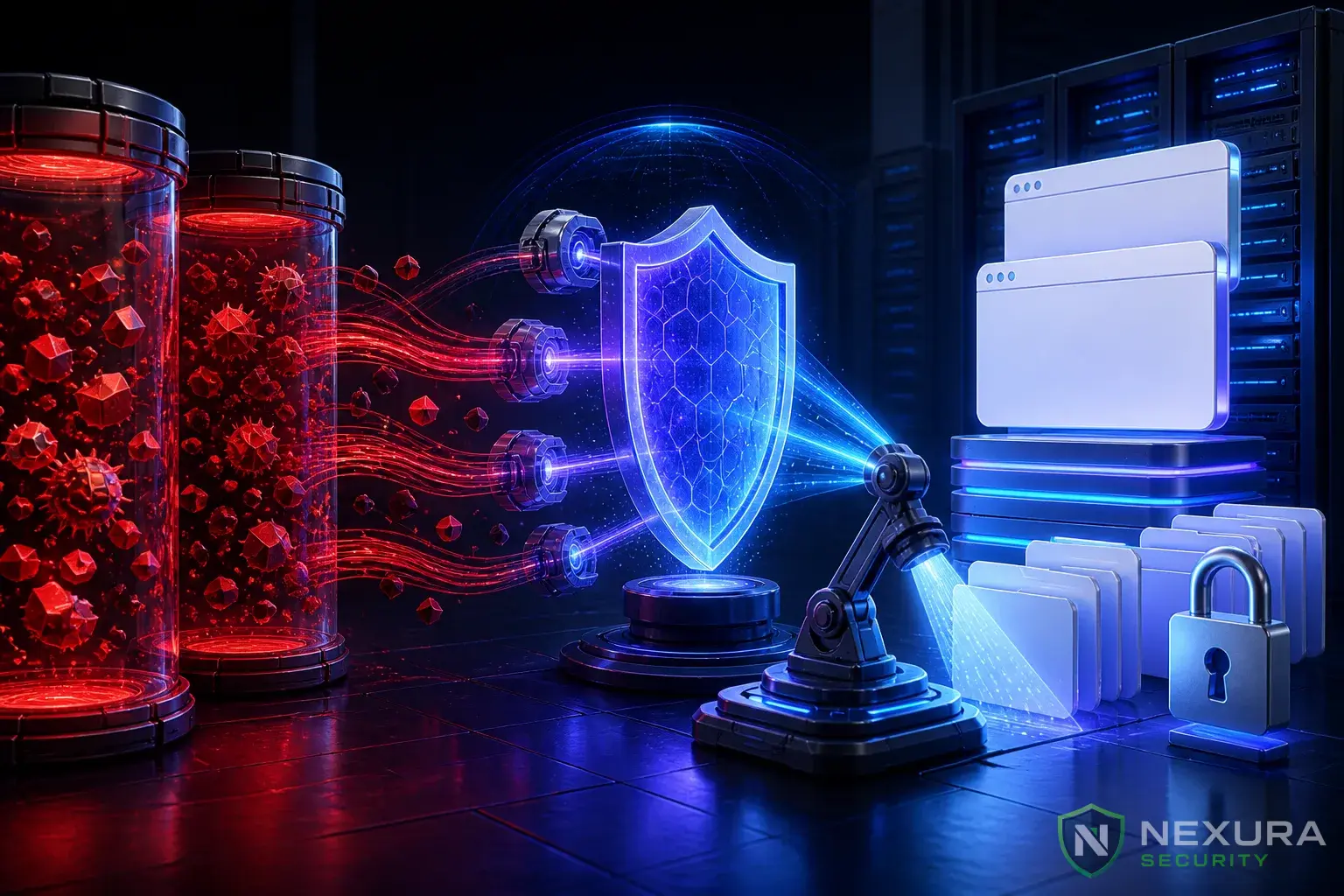

The Dreaded Red Screen: What Does It Mean?
If you or your visitors are seeing a bright red screen with the warning "The site ahead contains harmful programs," it means Google Safe Browsing has detected malware, phishing scripts, or malicious redirects on your WordPress website. Google has effectively blacklisted your site to protect users.
This is a critical emergency. Your organic traffic will drop to near zero, and your brand reputation is at immediate risk. Here is how to fix it fast.
Need immediate help?
If your site is currently hacked or showing warnings, our incident response team can help right now.
Step 1: Identify the Malicious Code
Google doesn't flag sites by accident. There is almost certainly malicious code hidden in your WordPress files or database. Common culprits include:
- Encoded PHP backdoors (e.g.,
eval(base64_decode(...))) - Malicious JavaScript injected into your theme's header or footer
- Spam links injected into your database
Step 2: Clean the Website (The Fast Way)
Finding obfuscated malware manually is nearly impossible for non-developers. The quickest way to restore your site is to use an enterprise malware scanner.
Upgrade to Nexura Pro
Get enterprise-grade protection. Block zero-day exploits, advanced malware, and brute-force attacks instantly.
LIMITED TIME LAUNCH OFFER
- Install and activate the Nexura Security plugin.
- Go to the Malware Scanner tab and initiate a Deep Scan.
- Nexura will compare your core files against the official WordPress repository and scan all plugins/themes for known malware signatures.
- Click Auto-Clean to quarantine the infected files.
Step 3: Secure the Breach
Before asking Google to review your site, you must ensure the hacker can't immediately get back in.
- Change all admin, FTP, and Database passwords.
- Update all plugins, themes, and WordPress core.
- Enable the Nexura Pre-Boot WAF to block future exploits.
Step 4: Request a Review from Google
Once your site is 100% clean and secured, you need to tell Google it is safe again.
- Log in to your Google Search Console account.
- Navigate to the Security & Manual Actions > Security Issues report.
- Review the issues listed. Since you have cleaned the site with Nexura, click the Request a Review button.
- In the text box, explain exactly what you did (e.g., "I scanned the site with Nexura Security, removed the backdoors found in my theme, updated all plugins, and changed all passwords.").
How Long Does It Take?
Google usually processes malware review requests within 24 to 72 hours. Once they verify the site is clean, the red warning will disappear, and your traffic will begin to recover.