Introduction: Protecting the Control Center
The WordPress admin dashboard (wp-admin) is the nerve center of your website. It is where content is created, users are managed, and critical configuration changes are made. If an attacker gains access to this area, they have effectively seized complete control of your digital property. They can inject SEO spam, steal user databases, redirect traffic to malicious sites, or completely delete your content.
When reviewing security incidents and discussions on communities like Reddit, it becomes clear that many site owners focus heavily on securing the front-end of their site against exploits, but leave the back-end woefully unprotected, assuming a simple password is enough. It is not.
Need immediate help?
If your site is currently hacked or showing warnings, our incident response team can help right now.
Securing the WordPress admin dashboard requires a dedicated strategy focused on strict access control, minimizing privileges, and reducing the potential damage an attacker can cause even if they manage to compromise an account. This guide covers the essential best practices for locking down your site's control center.
1. The Imperative of Strong Authentication
The most common way attackers access the dashboard is simply by walking through the front door using stolen or guessed credentials.
Upgrade to Nexura Pro
Get enterprise-grade protection. Block zero-day exploits, advanced malware, and brute-force attacks instantly.
LIMITED TIME LAUNCH OFFER
Banish the "admin" Username
If your primary administrator account has the username "admin", you are doing half the hacker's job for them. They already know the username; they just have to guess the password. Create a new user with a unique username, grant them the Administrator role, log in as that new user, and completely delete the original "admin" account (assigning any existing posts to the new user).
The Password Standard and 2FA
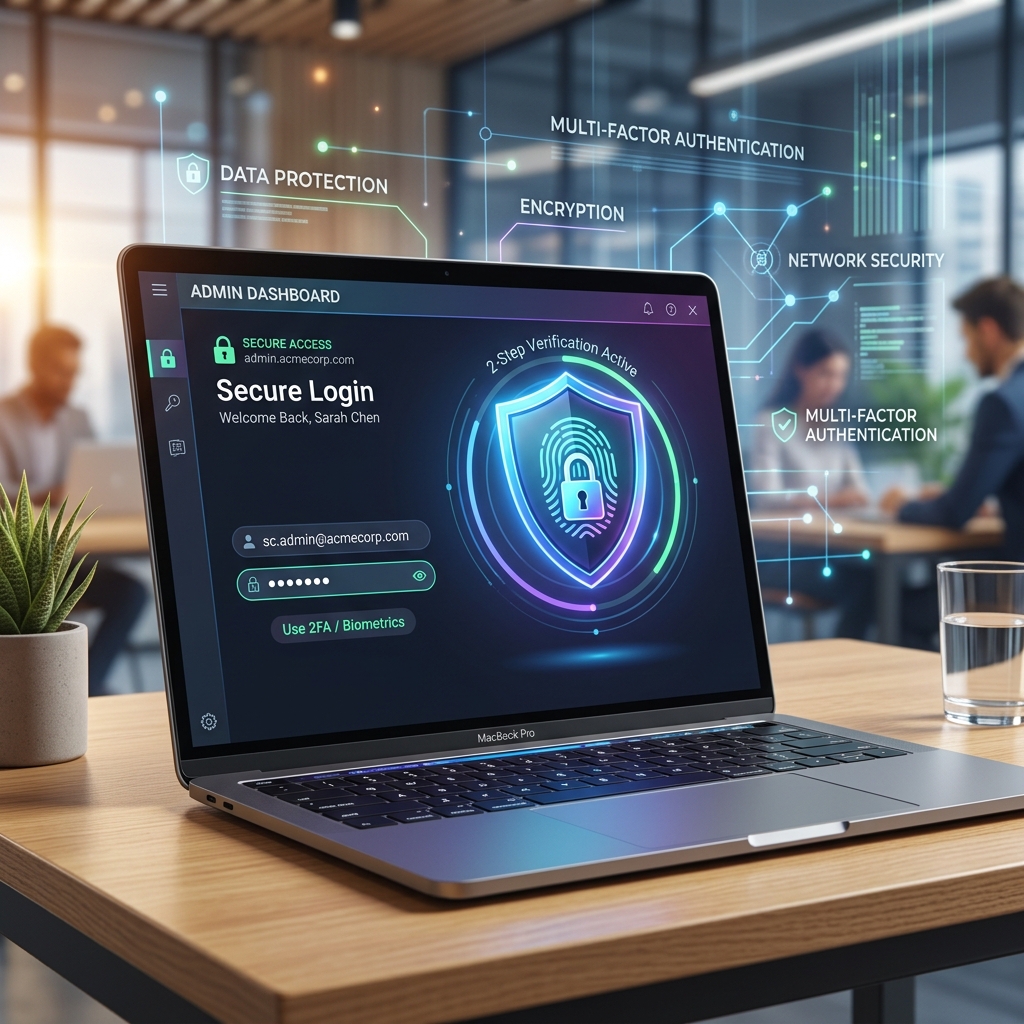
Passwords like "CompanyName2026!" are trivial to crack using modern hardware. You must use a password manager (like Bitwarden or 1Password) to generate and store long, random strings of characters (e.g., `h7K#m9Q!z2V$b4N@`). Furthermore, as discussed in our other guides, Two-Factor Authentication (2FA) is non-negotiable. Enforce 2FA for every account that has access to the `wp-admin` dashboard.
2. IP Whitelisting: The Ultimate Access Control
If you or your team work from fixed locations (like a specific office building or a home with a static IP address), IP whitelisting is one of the most powerful security measures you can implement.
How it Works
IP whitelisting involves configuring your server to explicitly deny access to the `/wp-admin/` directory and the `wp-login.php` file for everyone on the internet, except for the specific IP addresses you designate. Even if a hacker has your username, password, and 2FA token, their connection will be dropped by the server before the login page even loads.
Implementation
You can achieve this by adding rules to your `.htaccess` file (if using Apache) or your server block configuration (if using Nginx). For example, in `.htaccess`:
<Files wp-login.php>
Order Deny,Allow
Deny from all
Allow from 192.168.1.100
</Files>
If you have a dynamic IP address (which changes frequently) or a large remote team, IP whitelisting can be difficult to manage. In these cases, rely on strong 2FA and Cloudflare's Zero Trust access controls.
3. Hardening the Environment: Principle of Least Privilege
Security architecture dictates that a user or process should only have the bare minimum privileges required to perform its function. This applies to your WordPress configuration as well.
Disallow File Editing
By default, WordPress allows administrators to edit the raw PHP code of themes and plugins directly from the dashboard via the Theme Editor and Plugin Editor. This is incredibly dangerous. If an attacker compromises an admin account, they can use this feature to instantly inject a PHP backdoor into your theme, giving them permanent server access.
You must disable this feature. Open your `wp-config.php` file and add the following line:
define( 'DISALLOW_FILE_EDIT', true );Now, even an administrator cannot edit code from the web interface. All code changes must be done securely via SFTP or version control (Git).
Reviewing User Roles
Regularly audit your user list. Does your marketing person really need the "Administrator" role, or is "Editor" sufficient? If an Editor's account is compromised, the attacker cannot install malicious plugins or change core settings. Ensure everyone has the lowest level of access necessary to do their job.
4. Establishing an Audit Trail
If a security incident occurs, or if a critical setting is changed and the site breaks, you need to know exactly who did what, and when.
Activity Logging
By default, WordPress does not keep a detailed log of user activity. You should install a comprehensive activity log plugin, such as WP Activity Log. This tool records every login attempt, every published post, every changed setting, and every installed plugin, along with the user's IP address and timestamp.
This audit trail is invaluable for forensics. If an attacker gains access, the log will show you exactly what files they touched and what settings they altered, allowing you to rapidly undo the damage and close the security hole.
5. Securing the wp-config.php File
While technically outside the dashboard, the `wp-config.php` file is the master key to your site. It contains your database credentials and security salts.
Moving it Out of the Web Root
A highly recommended best practice is to move your `wp-config.php` file one directory level up, outside of the `public_html` or web root directory. WordPress is designed to automatically look for the file one level up if it isn't found in the root. By moving it outside the web root, you ensure that it can never be accessed directly via a web browser, even if a server misconfiguration occurs.
Strict Permissions
Ensure the file permissions for `wp-config.php` are set to `400` or `440`. This means the file can only be read by the server owner or the web server process, and cannot be modified by scripts or other users on a shared server.
Conclusion
Securing the WordPress admin dashboard is not about finding a single magic plugin; it is about building layers of defense. By strictly controlling who can reach the login page (IP whitelisting), ensuring they are who they say they are (strong passwords and 2FA), limiting what they can do once inside (disallowing file edits), and logging their every move (activity logs), you transform your dashboard from a vulnerable target into a hardened fortress.