
How to Fix
5xx Server Errors
Seeing a 500 Internal Server Error or a 503 Service Unavailable? These server-level errors can crash your site and hurt your SEO. Learn exactly how to diagnose and resolve them.
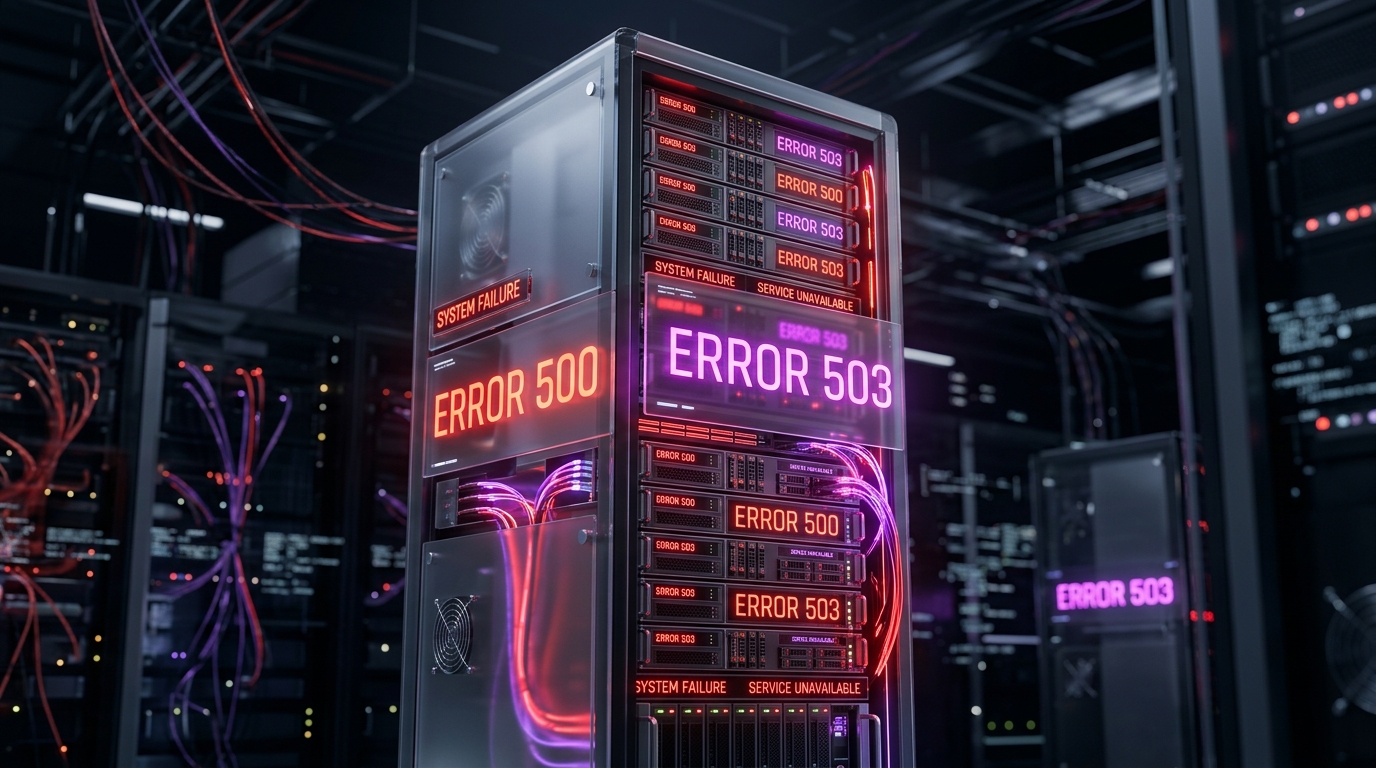
Understanding 5xx Errors
Unlike 4xx errors (like 404 Not Found), which are caused by the client requesting a bad URL, 5xx errors mean the problem is on the server's end. Your browser requested a valid page, but the web server failed to fulfill the request.
- 500 Internal Server Error: A catch-all error. The server encountered an unexpected condition. It usually points to a corrupted
.htaccessfile, bad file permissions, or an exhausted PHP memory limit. - 502 Bad Gateway: The server, acting as a gateway or proxy, received an invalid response from an inbound server (often an issue with caching layers like Cloudflare or Nginx).
- 503 Service Unavailable: The server is currently unable to handle the request due to temporary overloading or maintenance. If you are not running maintenance mode, this usually means a bad script is eating up all server resources.
How to Fix 500 Internal Server Errors
Regenerate Your .htaccess File
A corrupted .htaccess file is the #1 cause of the 500 error in WordPress.
- Access your site using FTP or your host's File Manager.
- Find the
.htaccessfile in the root folder (where yourwp-contentfolder is). You may need to enable "Show hidden files". - Rename the file to
.htaccess_old. - Try reloading your website. If it works, the file was corrupted.
To generate a new, clean .htaccess file, simply log into your WordPress admin, go to Settings > Permalinks, and click the Save Changes button without altering anything.
Check File and Folder Permissions
Incorrect permissions can stop the server from executing scripts. Your files and folders must follow standard WordPress security permissions.
- Folders should be set to
755or750. - Files should be set to
644or640. - wp-config.php can be set to
440or400for extra security.
How to Fix 503 Service Unavailable
Disable Problematic Plugins
If a plugin contains a "heavy" script (like a massive database query) that gets stuck in an infinite loop, your server will eventually throw a 503 error as it runs out of PHP workers.
- Connect to your site via FTP.
- Navigate to
/wp-content/and rename thepluginsfolder toplugins_old. - If the site loads again, rename the folder back to
pluginsand start deactivating them one by one to find the culprit.
Limit the WordPress Heartbeat API
The Heartbeat API sends continuous requests to the server while you are logged into the dashboard (for autosaving, post locking, etc.). If you leave your dashboard open in a tab, this can simulate a DDoS attack and cause a 503 error.
You can limit or disable the Heartbeat API by adding this code to your theme's functions.php file:
add_action( 'init', 'stop_heartbeat', 1 );
function stop_heartbeat() {
    wp_deregister_script('heartbeat');
}
Stop Hackers from Crashing Your Server
Many 503 errors are caused by malicious bots brute-forcing your login page or executing DDoS attacks. Nexura Security blocks bad bots automatically.
Secure Your WordPress Site