
How to Fix
Database Connection Errors
"Error Establishing a Database Connection" is one of the most common and scary WordPress errors. But don't panic—your data is likely safe. Follow this guide to reconnect your site to its database in minutes.
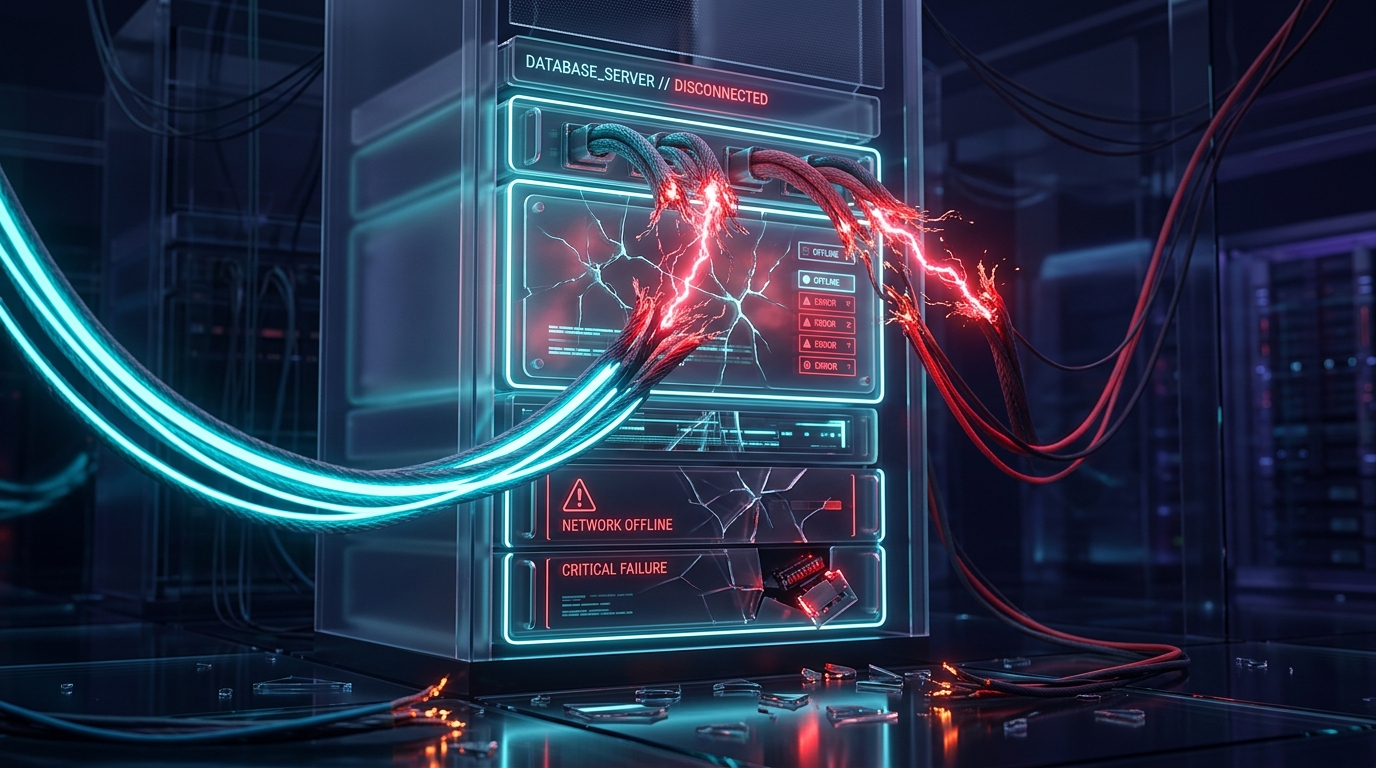
What Does This Error Mean?
WordPress is built on two main components: PHP (the code that builds the pages) and MySQL (the database that stores your posts, users, and settings).
When you see "Error Establishing a Database Connection", it simply means your PHP code is trying to talk to your MySQL database, but the connection has failed. Without the database, WordPress has no content to display.
Common Causes of Database Errors
- Incorrect Credentials: You recently migrated your site, changed hosts, or changed your database password, but forgot to update your
wp-config.phpfile. - Corrupted Database: A plugin error, a failed update, or a malicious attack corrupted database tables.
- Unresponsive Server: Your hosting provider is experiencing an outage, or your database server is overloaded with traffic.
Step-by-Step Fixes
Check Your wp-config.php Credentials
This is the reason for this error 90% of the time. Open your wp-config.php file (located in the root folder of your WordPress installation via FTP or File Manager).
Look for these four lines:
define( 'DB_NAME', 'database_name_here' );
define( 'DB_USER', 'username_here' );
define( 'DB_PASSWORD', 'password_here' );
define( 'DB_HOST', 'localhost' );
You must verify that these exact values match what is inside your Hosting Control Panel (cPanel, Plesk, etc.).
- Make sure there are no accidental spaces inside the quotes.
- If you recently moved hosts, the
DB_HOSTmight not belocalhostanymore. Ask your new host for the correct hostname.
Repair a Corrupted Database
If your credentials are correct, but your database itself is corrupted, WordPress has a built-in repair tool you can use.
Open your wp-config.php file and add this line right before "That's all, stop editing":
define( 'WP_ALLOW_REPAIR', true );
Next, visit this exact URL in your browser:
https://yourdomain.com/wp-admin/maint/repair.php
Click the Repair Database button. Once the repair is complete, check your site.
Important: Remove the WP_ALLOW_REPAIR line from your wp-config.php file immediately after you are done to prevent security risks.
Contact Your Hosting Provider
If steps 1 and 2 didn't work, the issue is almost certainly on your host's end. Your database server might be down, or your MySQL quota has been exceeded. Open a live chat with your hosting support and tell them you are getting a database connection error despite having the correct wp-config credentials.
Keep Your Database Secure
SQL Injection attacks can corrupt your database and cause this error. Nexura Security blocks malicious SQL requests automatically to keep your data safe.
Run Free Security Scan